Customize Workflow allows you to create non-standard profiling workflows that deviate from the default profiling workflow. This is useful for non-ICC workflows, or workflows that incorporate steps such as gray balance or black generation tables.
To create a new workflow:
- In the main Media Manager screen, select Report and Tools icon.
- Click [Customize Workflow] button. This opens “Workflow Editor” dialog (Figure 2).
- Click [Add] button.
- In the “Workflow Options” screen (Figure 3), select [Workflow Type] whether you use [ICC-Based Workflow] or not.
- Type your workflow name in a box. Then click next (
 ) button. This shows “Workflow Features” screen (Figure 4).
 - Select options that you want to print a test image for each step and click finish (
 ) button
To use the new workflow:
- In the main Media Managre screen, select Create Profiles icon and click [Create a new Media Profile] or [Create a new Print Mode] button. This opens “Choose Workflow” dialog (Figure 5).
- Select a new workflow that you created.
- Follow each step of creating a new media profile or mode for your new workflow.
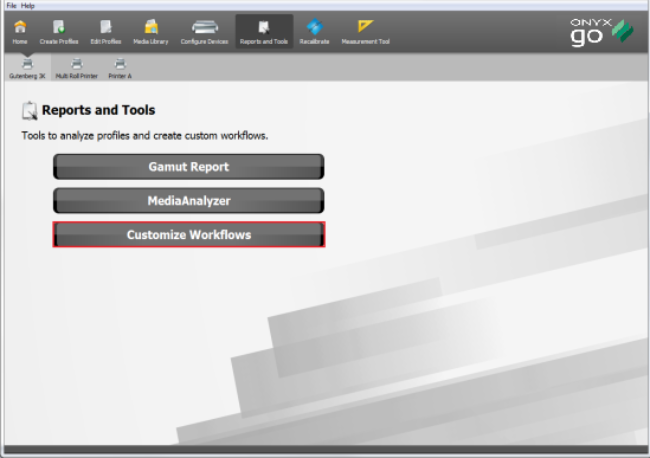
Figure 1
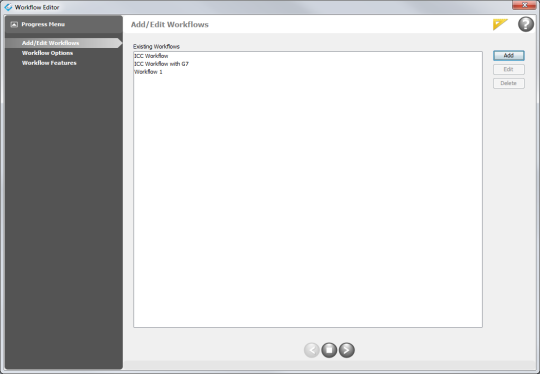
Figure 2
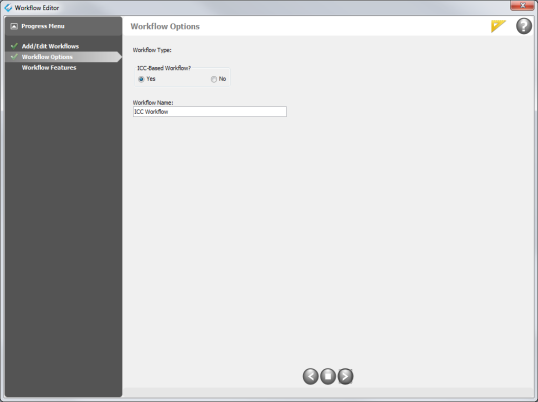
Figure 3
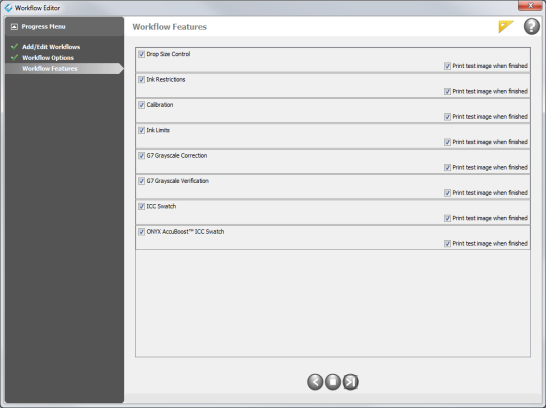
Figure 4
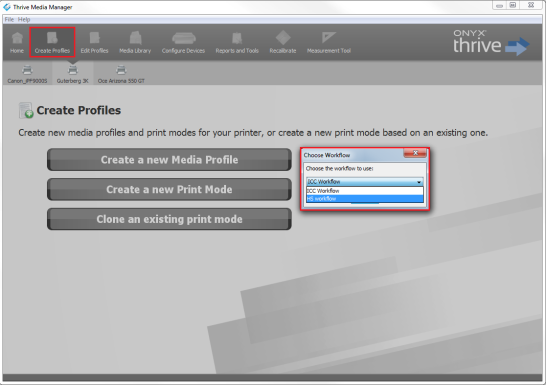
Figure 5